You can pair Bluetooth headphones with a Windows 11 or Windows 10 PC through Settings, much as you would with a smartphone. Bluetooth speakers also provide wireless audio without long cables, with audio quality comparable to a wired speaker system.
Connect Bluetooth headphones in Windows 11
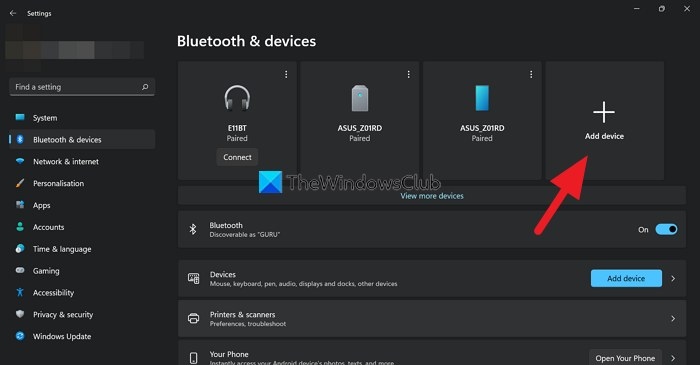
- Open Settings from the Start menu, or press Win+I. Select Bluetooth & devices in the left pane.
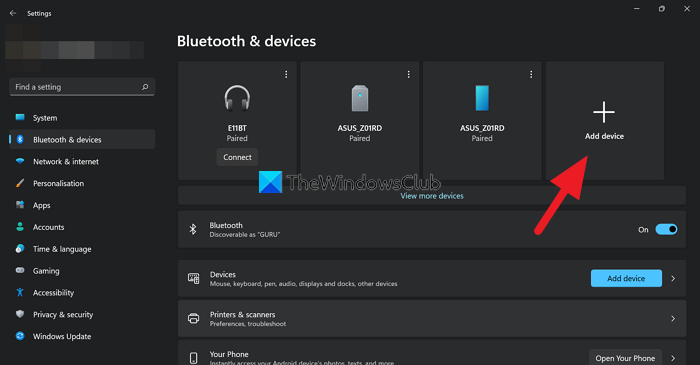
- Click Add device beside the list of paired devices.
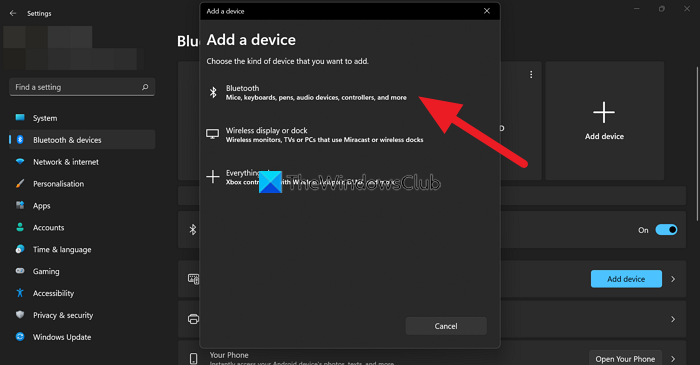
- In the Add a device window, select Bluetooth.
- Turn on your headphones so the PC can detect them. Select them when they appear in the available-device list, which may also include nearby devices belonging to other people.
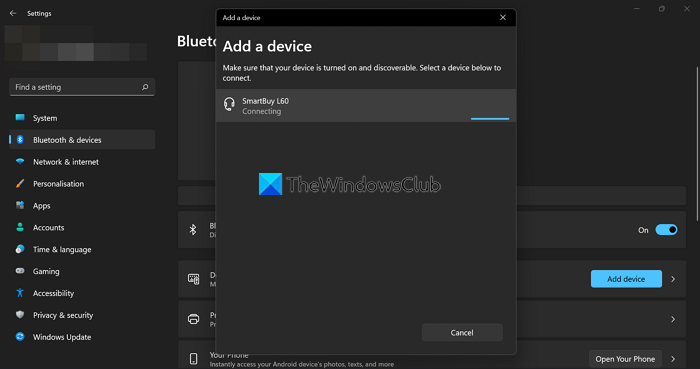
A connected status confirms that pairing has succeeded. You can add multiple Bluetooth devices, but can use only one at a time.
Connect Bluetooth headphones in Windows 10
First, check how to put your headphones into pairing mode. This usually involves holding the power button for several seconds, or until the status lights blink. If you are unsure, consult the headphones’ user guide or manufacturer’s website for setup instructions.
- Open Start and select the gear-shaped Settings icon. If you cannot find it, search for “Settings” in the Start menu.
- Select Devices.
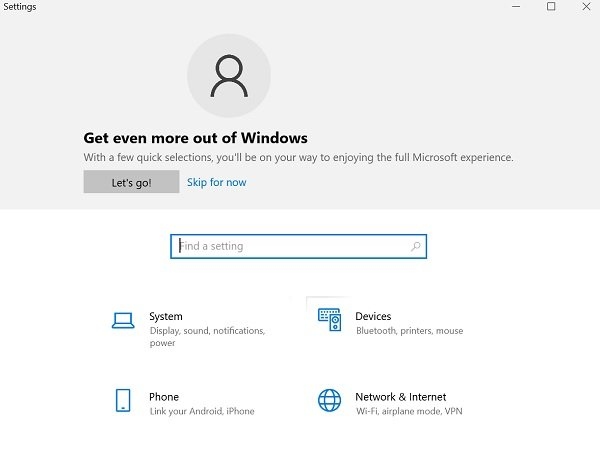
- Open Bluetooth and other devices from the left pane if that section is not already displayed.
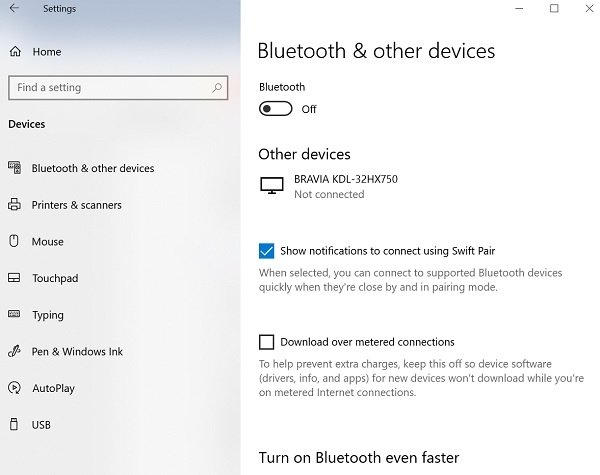
- Check that Bluetooth is on. If it is off, click its button so it turns blue.
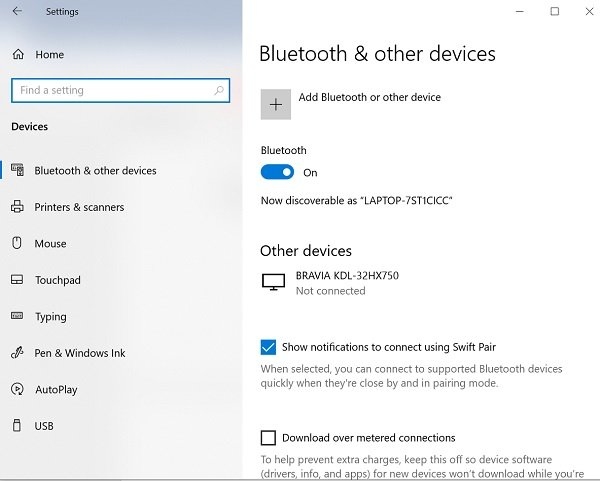
- Select Add Bluetooth or other device, then choose Bluetooth in the Add a device window.
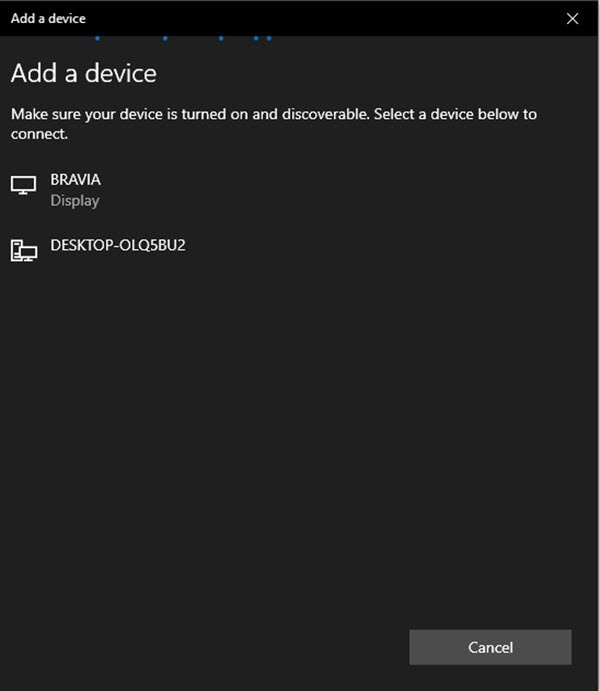
- Put your Bluetooth headphones into pairing mode.
- Wait a few minutes for the headphones to appear in the device list, then select them.
- The headphones may connect immediately or request a Bluetooth passcode. If prompted, enter the code specified in their user guide. The passcode is commonly 0000 (four zeros).
- When the PC confirms that the headphones are connected, select Done and close Settings.
Help Windows detect your headphones
Make sure the headphones are turned on and are not connected to another device, such as a phone. A blinking light indicates that they are ready to connect, and your PC should detect them automatically.
Troubleshoot Bluetooth pairing and audio
Bluetooth problems can include:
- A missing Bluetooth icon, or an inability to turn Bluetooth on or off.
- Devices that do not appear, pair, or connect.
- Bluetooth stopping after a Windows Update.
- Bluetooth headphones failing to work.
- Bluetooth failing after an upgrade from Windows 10 to Windows 11.
- Headphones not being detected.
- Bluetooth missing from Device Manager, with no unknown devices listed.
- A “Setup incomplete because of a metered connection” message.
Try these troubleshooting steps in order:
- Check that the headphones are within range of your Windows PC.
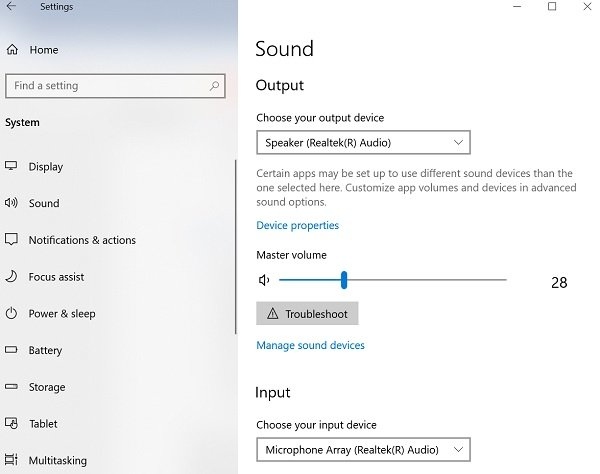
- Make sure the Bluetooth device is selected for audio playback. Go to Start > Settings > System > Sound > Choose your output device and select it.
- If the headphones show Paired but produce no sound, check that they are connected. Go to Start > Settings > Devices > Bluetooth and other devices. In the Bluetooth section, select the device, then select Connect.
- Remove the pairing and pair the headphones again. Open Settings > Devices > Bluetooth and other devices, select the paired headphones that are not working, and choose Remove device > Yes. Then repeat the pairing process.
You can connect Bluetooth headphones to devices such as a smartphone and a Windows PC. Depending on the headphone model, however, only one device connection may be supported at a time.
Set headphones as the default audio device
Windows 11 automatically makes a connected audio device the default. When you disconnect it, Windows 11 switches the default from the external device to the built-in speaker on a laptop.
If your headphones are not selected automatically, open Control Panel and go to Hardware and Sound > Sound. On the Playback tab, right-click the headphones and choose Set as Default device.