Muffled headphones can make music less enjoyable and conversations difficult to follow. Finding the cause is the first step toward restoring clear sound, whether the problem lies in the headphones, their wireless connection, or your computer's audio settings.
What Causes Muffled Bluetooth Headphone Sound?
Moisture exposure
Rain, spills, immersion in a puddle or lake, and high humidity can expose headphones to moisture. Heavy exposure may cause malfunctions or permanent damage.
Wireless connection problems
Problems with proprietary drivers on either the headphones or the connected device can cause poor audio transmission or dropped connections. Driver issues can be difficult to identify, but updating or reinstalling the drivers is worth trying even when the cause is uncertain.
Accumulated dirt
Dust, lint, and other debris can build up in headphones, whether they are used in a recording studio or everyday settings. That layer of dirt obstructs the sound and reduces its quality.
Damaged speakers
The speakers inside headphones contain voice coils that can handle only a limited amount of power. Prolonged listening at high volume can push the speakers beyond their capacity, leaving their output weaker and quieter.
How to Troubleshoot Muffled Headphones
Address moisture damage
Gather a cloth, a bowl of rice, and 91% isopropyl alcohol, then follow these steps:
- Dampen the cloth with alcohol and thoroughly wipe the parts of the headphones exposed to moisture.
- Place the headphones in the bowl of rice for at least 12 hours to dry. Headphones submerged for a long time may need several days.
- Test them after allowing time to dry. If the sound improves but remains slightly muffled, allow more drying time.
- Repeat as needed to remove remaining moisture.
Restore the Bluetooth connection
If your headphones struggle to maintain a connection, try the following in order:
- Check for driver or software updates. Some Bluetooth headphone manufacturers provide updates through their websites or apps.
- Reset the headphones' Bluetooth connection. Problems can occur when earphones connect to the device or to each other. Use the headphones' reset procedure to clear their memory, then reconnect.
- Switch off Bluetooth on your smartphone, laptop, or tablet for fifteen seconds. Turn it back on and reconnect.
Remove dirt and earwax
You will need paper wipes, a paper clip, and tape to remove lodged debris.
- Wipe away thick deposits of dirt.
- Fold a piece of tape so both outer surfaces are sticky, then attach it to the paper clip.
- Use the paper clip to bring the adhesive into contact with debris in hard-to-reach areas.
- Repeat until clean.
Inspect the speakers
Weakened speakers may blow when operating at maximum capacity. To inspect the headset for damage:
- Locate the screw on the headset and use a special tool to open it.
- Carefully remove the cover, then locate and remove the screws inside.
- Gently pry the two earphone covers apart, taking care not to break the device.
If you discover a broken component, consider taking the headphones to a repair shop.
Troubleshooting on a Windows PC
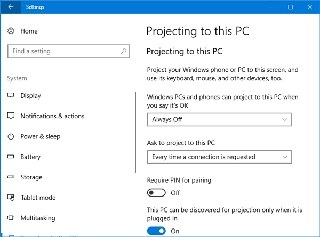
On Windows 10, proprietary driver issues or poor sound settings can lead to muffled audio. Connect your headphones to the computer, then visit the manufacturer's website for the latest drivers. Running "Check for updates" in Windows System Settings may also help.
Check sound effects and audio quality
Microsoft's audio driver implementation can sometimes contribute to the problem. To examine equalization settings:
- Right-click the "Speaker" icon on the taskbar.
- Select "Open Sound Settings".
- Open the "Enhancements" tab to adjust the headphones' equalization settings.
If the audio is already muffled, sound effects may be introducing distortion. Start by disabling all sound effects. You can then try 24-bit audio:
- Return to Sound Settings.
- Under "Headphones," select "Device properties".
- Click "additional device properties" on the right side of the screen.
- In the window that opens, select the "Advanced" tab.
- Choose 24-bit audio from the drop-down menu.
Run Windows Troubleshoot
If the problem persists, use Windows Troubleshoot:
- Open the start menu and select the "Settings" icon.
- Choose "Update & Security."
- Select "Troubleshoot" under the "Troubleshoot" heading on the left.
- Click "Playing Audio".
Windows will then attempt to identify and resolve the audio issues automatically.
Troubleshooting on a Mac
Mac users have fewer options for resolving connection problems. Begin by opening the Bluetooth controls in System Preferences. Turn Bluetooth off, wait a few minutes, and turn it back on. Try resetting the Bluetooth headphones as well.
If the connection still does not work properly, the headphones may be attempting to use an audio codec incompatible with your device. Try these steps:
- Open the Apple Menu.
- Select "System Preferences".
- Choose "Security & Privacy".
- Review the programs that have microphone access.
- Close those programs.
This should prevent the Mac from treating the headphones as a microphone.
Frequently Asked Questions
How can I get clearer sound from my headphones?
Different cables or earpads may improve audio quality. A DAC or amp is another option if needed. If none of these approaches works, consider replacing the headphones with a better-sounding pair.
Why do my headphones sound as though they are underwater?
Poorly fitting earbuds can let outside noise enter and distort what you hear. The audio player may also be responsible: excessively high equalizer settings can overamplify bass frequencies, creating an underwater effect.
What can make wireless headphones sound muffled?
The four possible causes covered here are moisture, a faulty wireless connection, accumulated dirt, and damaged speakers.
Maintenance and Replacement
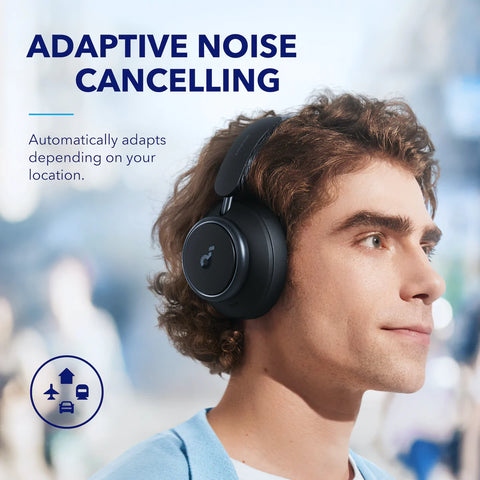
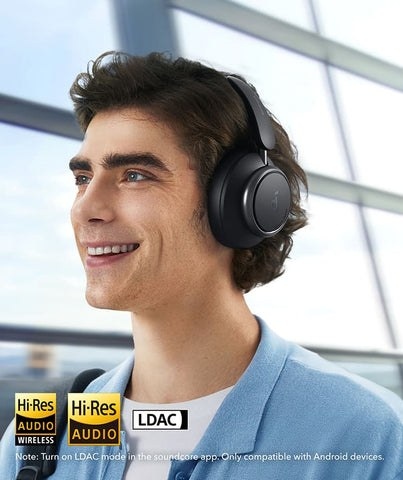
Careful handling and regular maintenance can help prevent these problems. If you do not yet own headphones or your current pair is completely worn out, soundcore Space Q45 is suggested as a high-quality replacement to consider.