Equalizing headphones changes their frequency response, allowing you to adjust their sound to your taste or bring it closer to a reference such as the Harman Curve. The tools range from simple companion-app sliders to detailed parametric filters. Understanding their controls, limitations, and reference targets will help you choose an approach.
What Does an Equalizer Do?
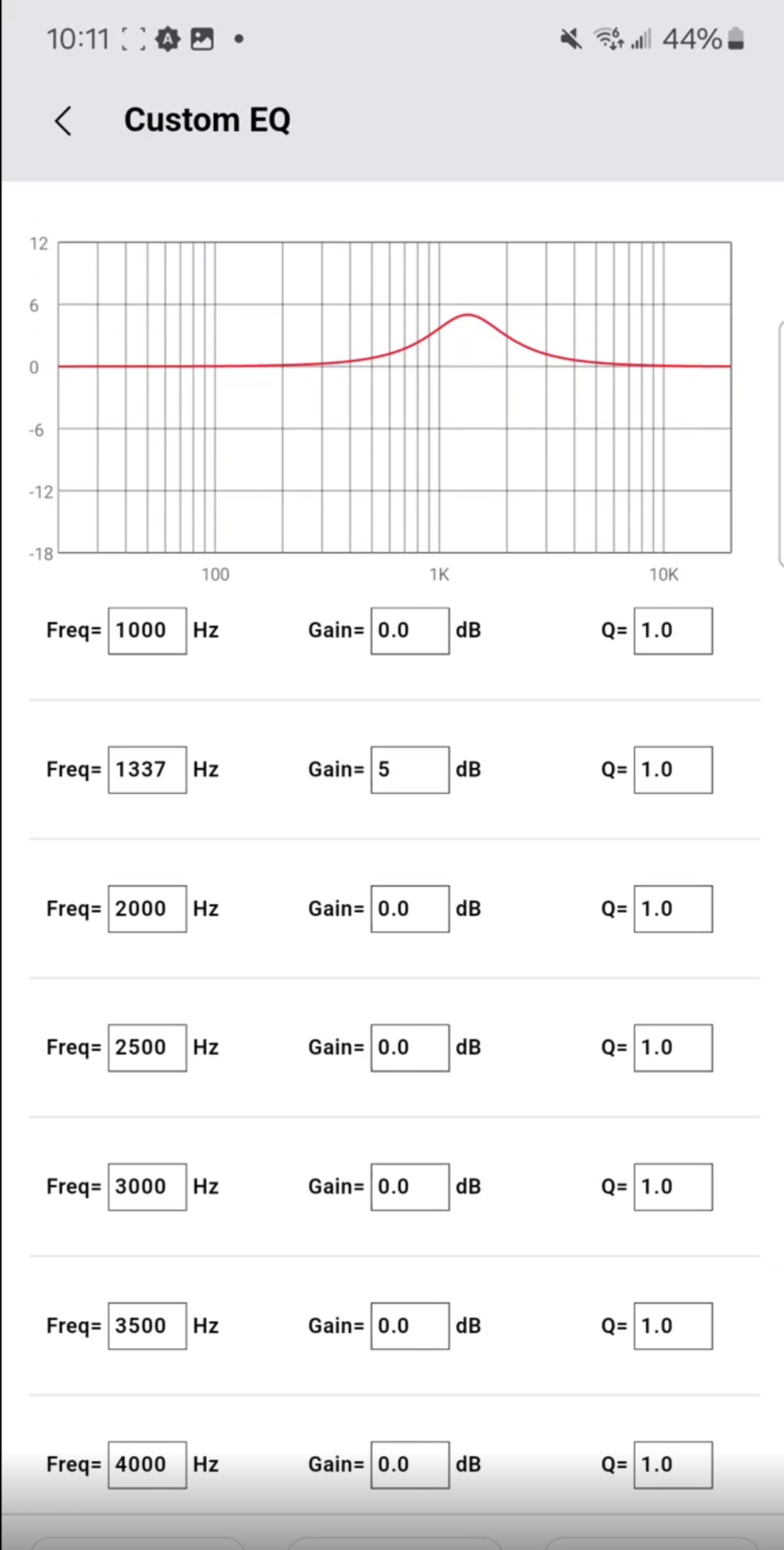
An equalizer adjusts the level of selected frequency ranges in an audio signal. Think of it as separate volume controls for different parts of the spectrum: you might raise the bass or reduce a harsh treble peak. Basic bass and treble knobs make broad tonal changes, while a fully parametric EQ, such as the one in Moondrop Link, can address specific problem frequencies.
Reasons to Equalize Headphones
Stock tuning won't suit every listener. EQ can add bass impact, reduce fatiguing treble, or correct imbalances such as recessed mids, resonances, and excessive bass—even in expensive headphones. Targeted changes can make vocals more prominent and restore tonal balance.
Some listeners adjust EQ at different listening levels to account for the equal-loudness contour. The Fletcher Munson curve is one variant of this contour. Such adjustments help keep the perceived tonal balance consistent at quieter and louder volumes.
For films, EQ can emphasize explosions or improve dialogue clarity. Gamers may boost frequencies associated with footsteps and other important cues. Many gaming headset apps include extensive EQ controls; SteelSeries GG also provides game-specific presets.
Reference targets offer another starting point for a balanced or studio-reference sound. They can also make different headphones more alike in overall tonality, though EQ cannot make two pairs sound identical.
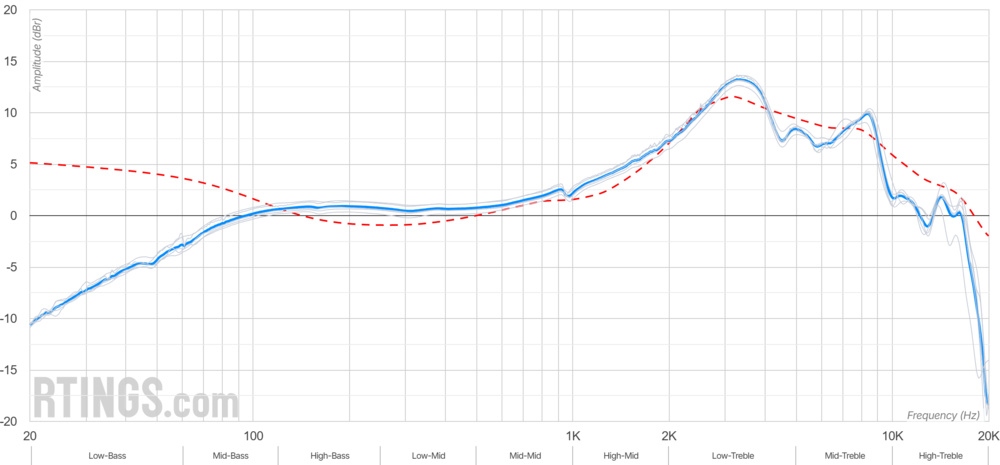
Although some audiophiles have regarded EQ as impure or harmful to sound quality, modern digital EQ adds virtually no distortion when used within reasonable limits. Headphones are minimum phase devices, so their frequency and phase responses are linked. Correcting their frequency response also produces predictable, non-destructive phase changes consistent with their transducers' behavior. In this context, those shifts are part of the correction rather than a defect. Studios routinely use EQ, and listeners can likewise use it to improve tonal clarity or neutrality.
There are physical limits, however. A driver unable to reproduce deep sub-bass won't gain that ability from a 15 dB boost at 20Hz; distortion may result instead. EQ doesn't directly change group delay or perceived soundstage, which also depend on driver and ear cup design. Removing overwhelming frequencies may subjectively improve soundstage, but EQ primarily adjusts tonality—the largest contributor to perceived headphone sound quality. It offers little help with severe distortion or a driver's missing capabilities.
Graphic and Parametric Equalizers
Before digital processing became common, engineers used analog hardware with physical controls to shape recordings. Hi-fi systems also commonly included fixed-band EQ, including familiar bass and treble knobs.
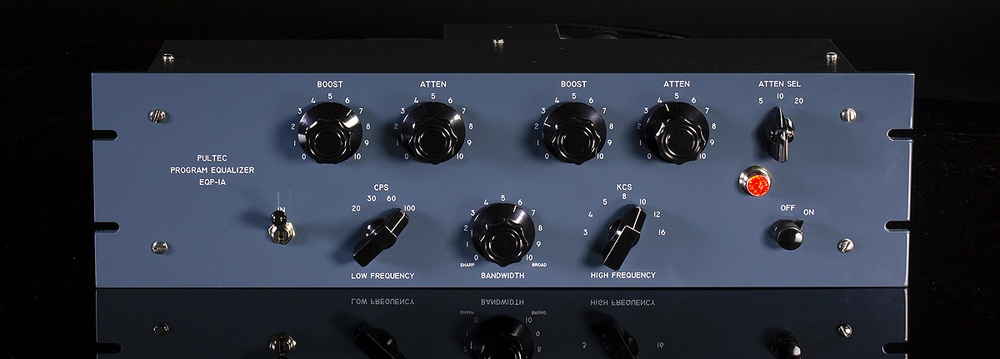
Digital EQ now handles most headphone adjustments. Manufacturers such as Schiit Audio still sell analog headphone EQs, and some headphone amplifiers include them, usually as broad tone controls. The two main digital options are graphic and parametric EQ.
Graphic EQ: Simple, Broad Adjustments
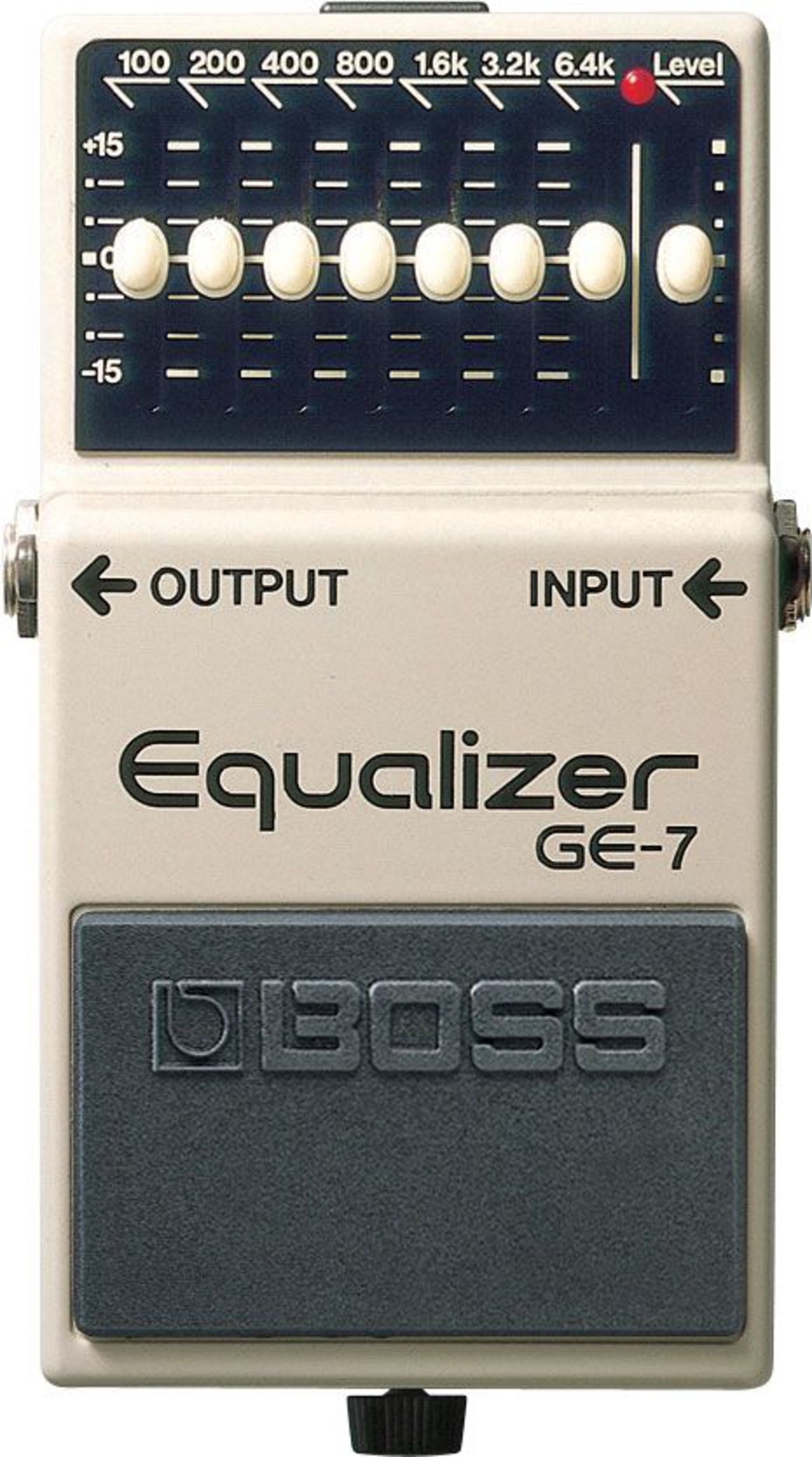
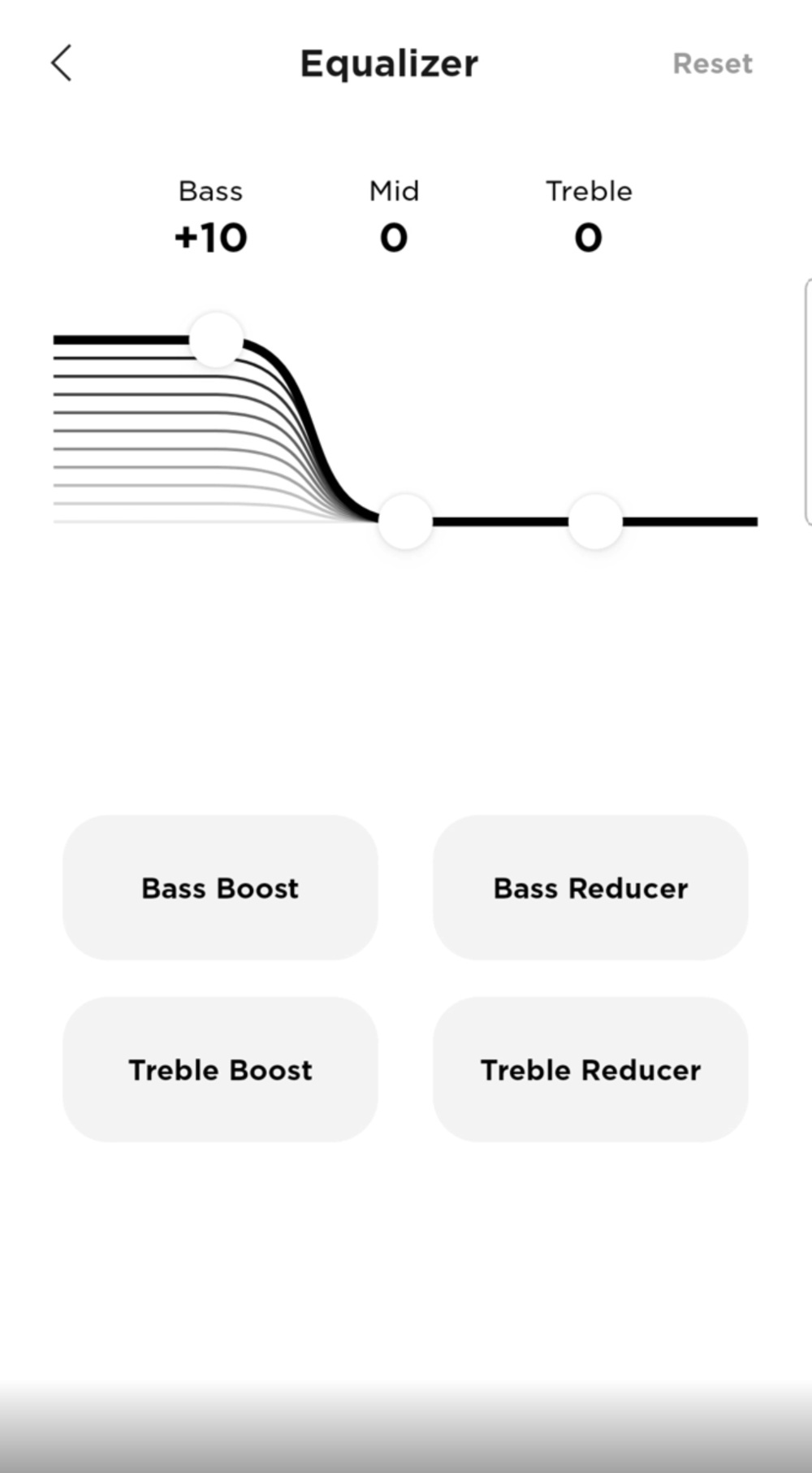
Graphic EQ provides fixed-frequency bands that you can raise or lower. Found in consumer apps and guitar pedals alike, it is straightforward but relatively coarse: neither the band frequencies nor their widths can be changed. Some manufacturers don't identify the frequencies, either. Bose Music, for instance, offers bass, mids, and treble sliders. These controls suit broad tonal changes rather than precise corrections.
Parametric EQ: More Precise Control
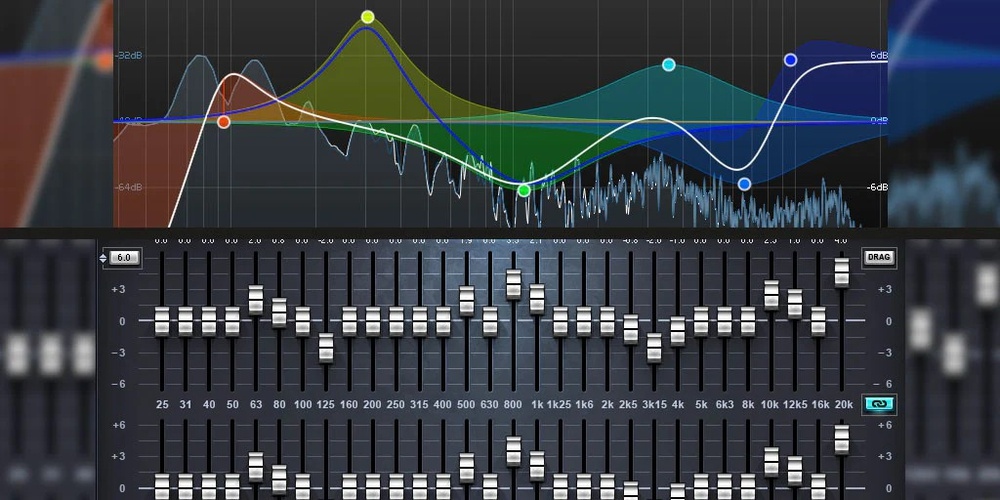
Parametric EQ lets you specify each band's center frequency, boost or cut, and width, expressed as the Q factor. Some implementations also offer peaking, shelf, or pass filters. This makes it possible, for example, to reduce a narrow resonance at 5.2kHz while leaving neighboring frequencies largely untouched.
Entering exact values or manipulating graph points takes more learning than using graphic sliders, but the additional accuracy explains why most community presets use parametric EQ, or PEQ. Choose graphic controls for quick tonal changes and parametric controls for detailed tuning.
Understanding Target Curves
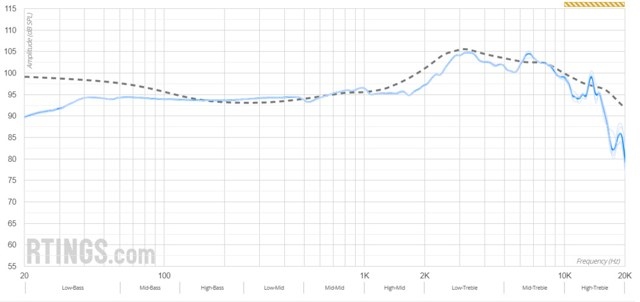
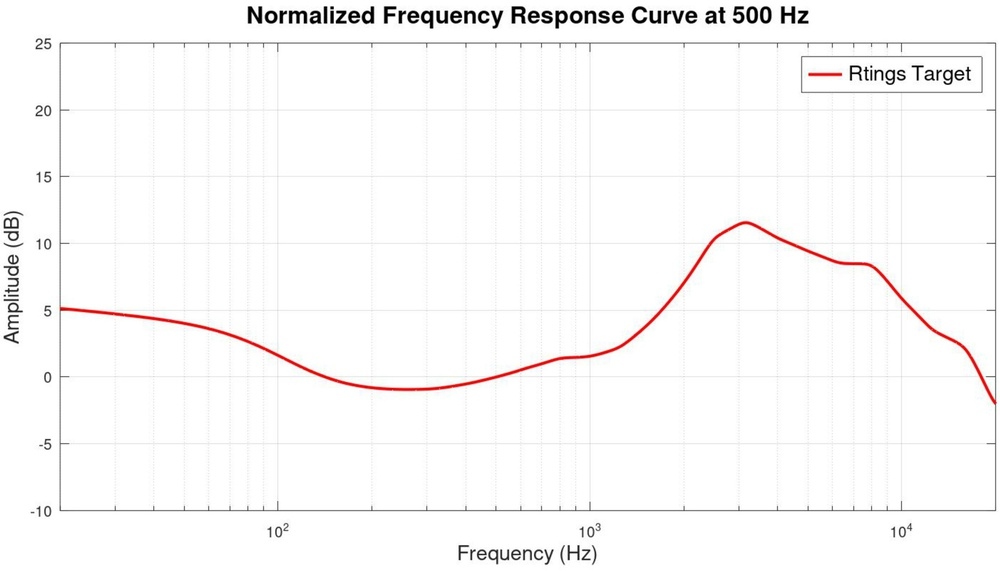
Target curves are reference frequency responses that research has found neutral or pleasing to most listeners. The most widely cited is the Harman Curve, developed through Harman International listening tests1,2,3. Alternatives include the RTINGS.com in-house target. Since Headphones Test Bench 2.0, RTINGS.com's graph tool has offered a selection of targets; its article One Curve Doesn't Fit All explains the reasoning behind the in-house curve.
A target is a baseline, not a rule. Some listeners prefer more bass or a brighter balance. Community presets often aim for Harman or related targets, but adjusting by ear remains valid because hearing and preferences differ.
Listening-Based and Measurement-Based Tuning
Tuning by ear means adjusting EQ while playing familiar music. It requires patience rather than measurements. One useful technique is to exaggerate a band to identify its effect, then reduce it to a natural level. Beginners should make small changes and check several tracks to avoid overcorrection. Try switching among five to ten favorite tracks until the balance is satisfying across them without making any sound unusually uneven.
Measurement-based tuning instead uses frequency response graphs and targets to identify corrections. A measured peak at 3.5kHz relative to a target, for example, suggests a cut in that region. Tools such as AutoEQ can generate filters automatically.
Measurements aren't infallible: test rigs differ, and a technically matched target may still sound too bright or bass-heavy to you. Combining the methods often works best—start with measured corrections, then refine the result by ear.
Where to Apply EQ
Headphone Companion Apps
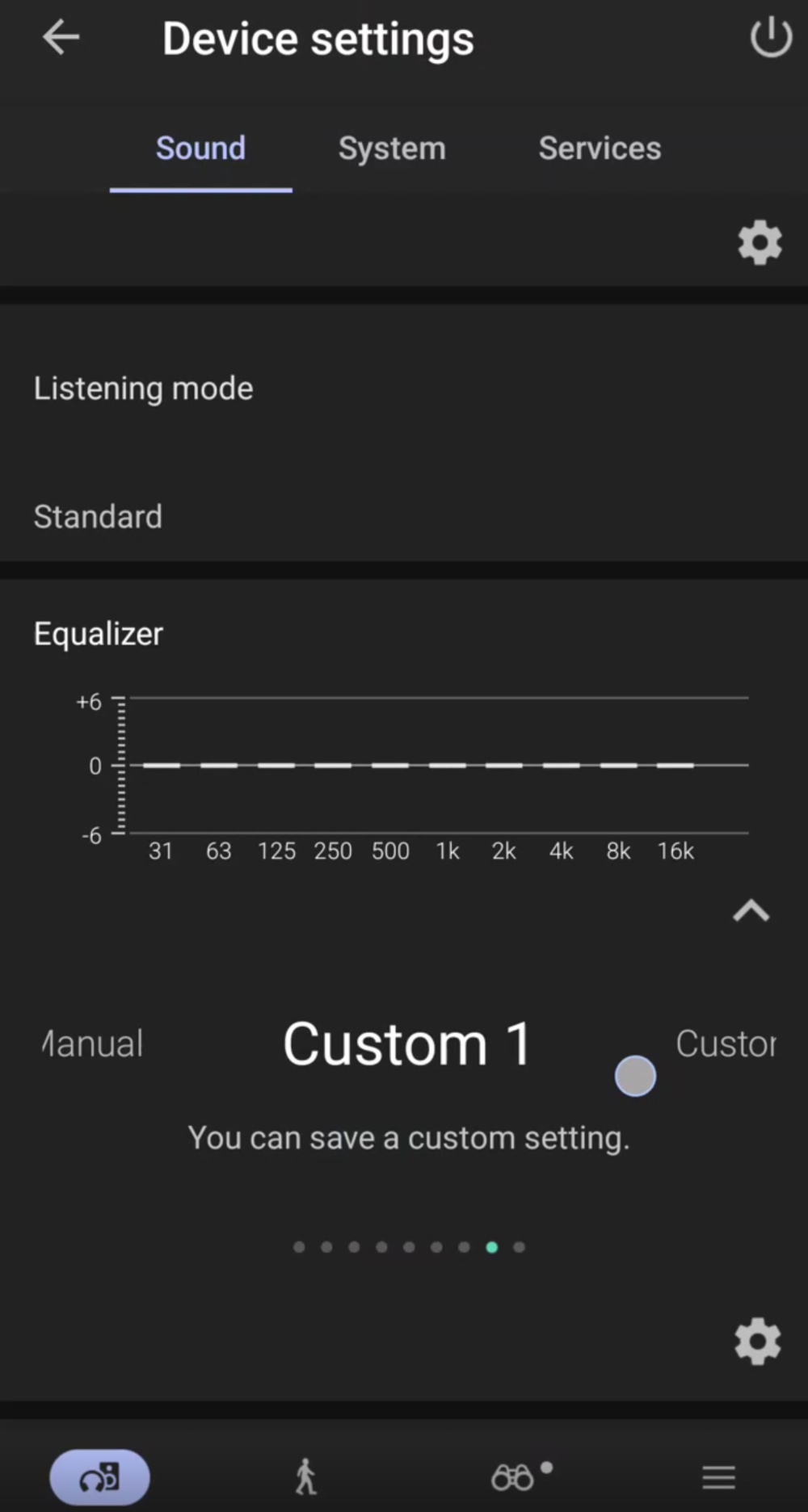
Most wireless headphones from brands such as Bose, Sony, Sennheiser, and JBL offer EQ in a companion app. Typically, these are limited graphic controls with 3-5 sliders or touch-based curves, although a few apps provide parametric EQ.
The important distinction is that companion-app EQ is stored in the headphones and processed by their internal DSP. It remains active when changing devices or using a wired connection, provided the headphones are powered on or Active. For example, settings applied to Sony WH-1000XM6 headphones remain in effect after disconnecting the app and connecting another device.
Third-Party Software
Third-party apps can provide greater control, particularly for wired headphones or models without onboard EQ. Unlike companion apps, they process the playback device's audio output. Their settings therefore don't automatically follow your headphones to another device.
Android
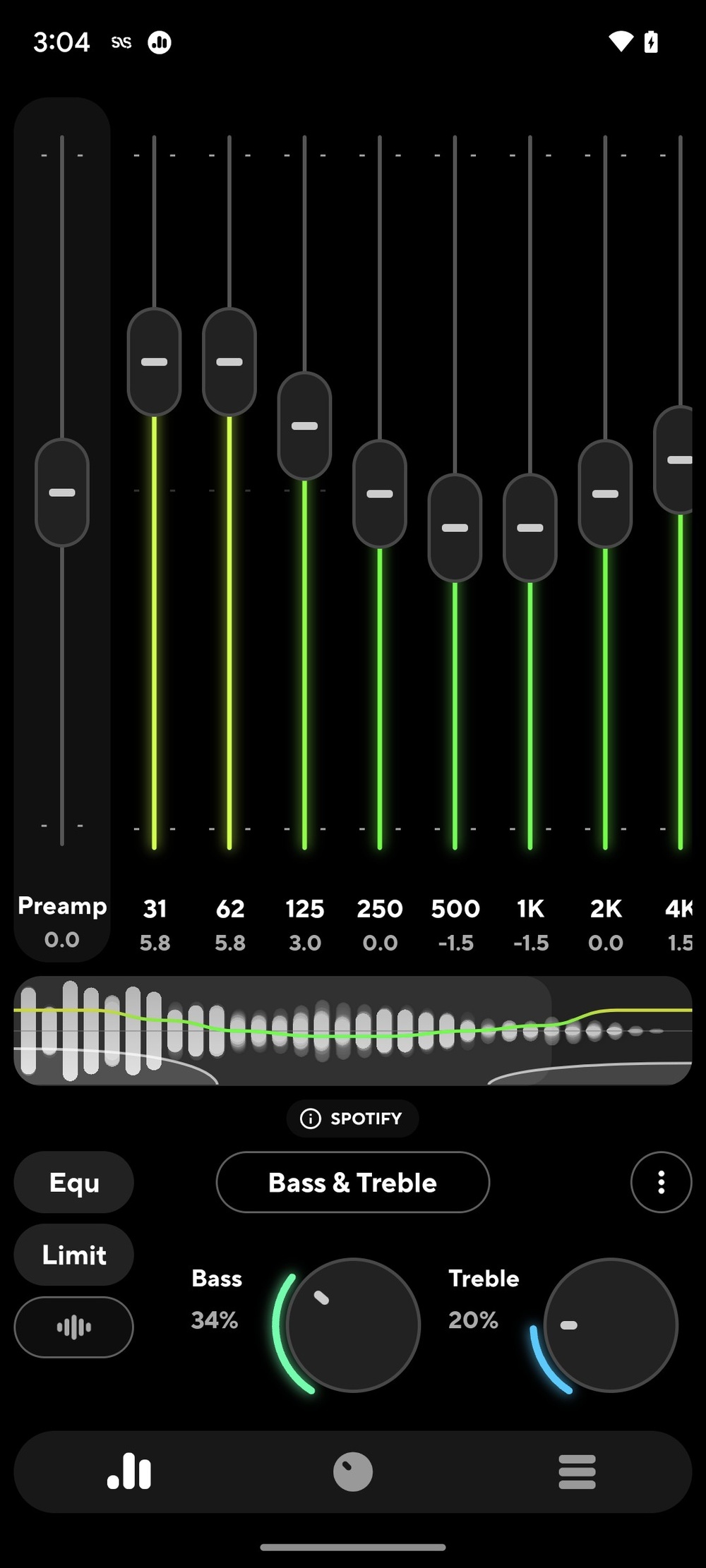
Wavelet and Poweramp Equalizer offer parametric EQ and presets for hundreds of headphone models. You can also create profiles that apply automatically for each connected device, including Bluetooth speakers, and keep them in one app. Third-party EQ can slightly affect battery life or conflict with streaming services, although well-optimized apps rarely encounter these issues.
iOS
Apple restricts developers' access to system-wide audio effects, making iOS less flexible. The 'Accessibility' settings menu includes some EQ presets, as does Apple Music, but neither provides manual custom EQ.
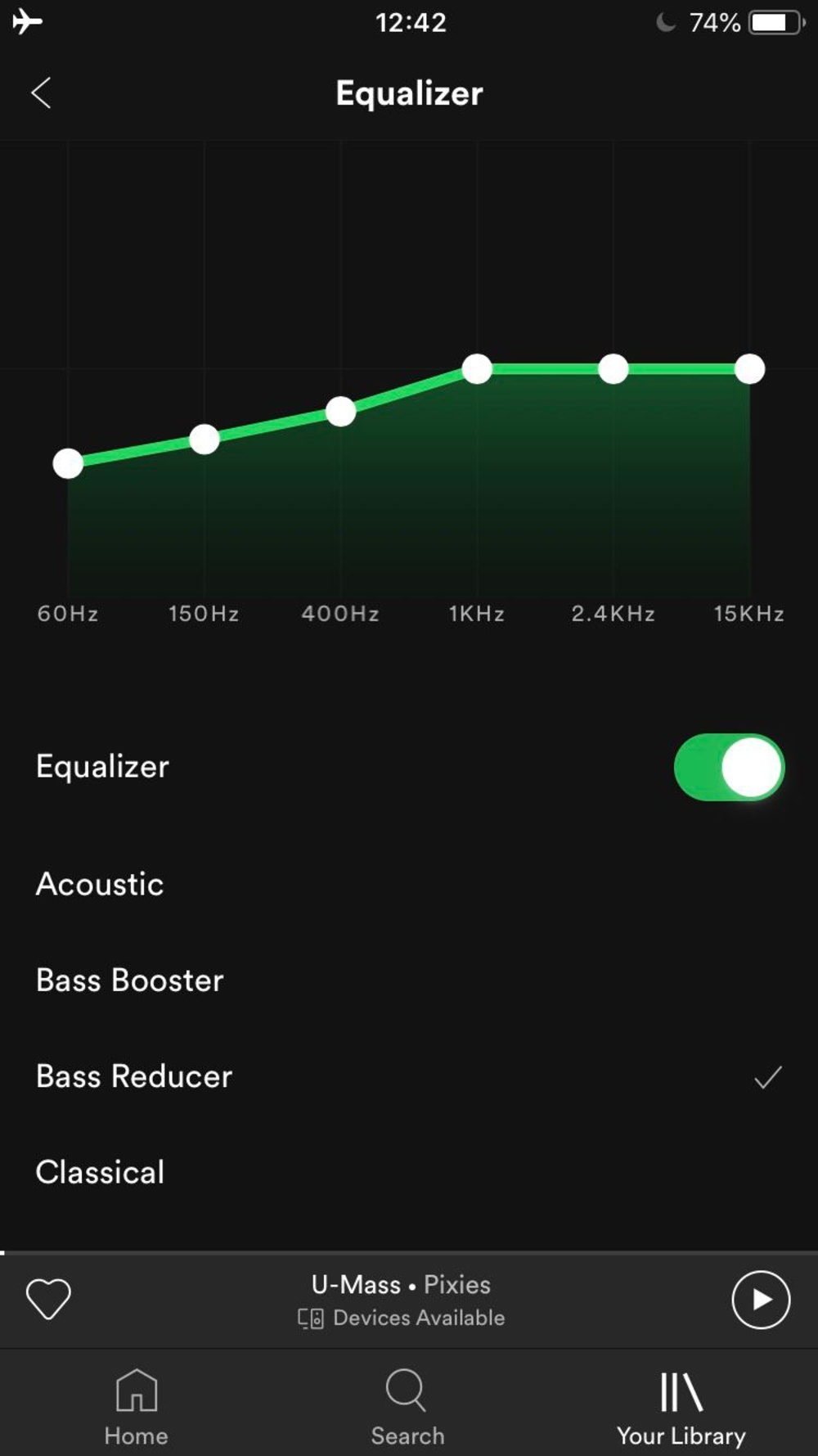
Apps such as Boom and Equalizer Pro can equalize local music files. Sandboxing prevents their EQ from affecting streaming apps such as Spotify or Apple Music. Spotify users must instead use its own simple 6-band graphic EQ. Broader flexibility on iOS requires external DACs with dedicated apps.
Windows
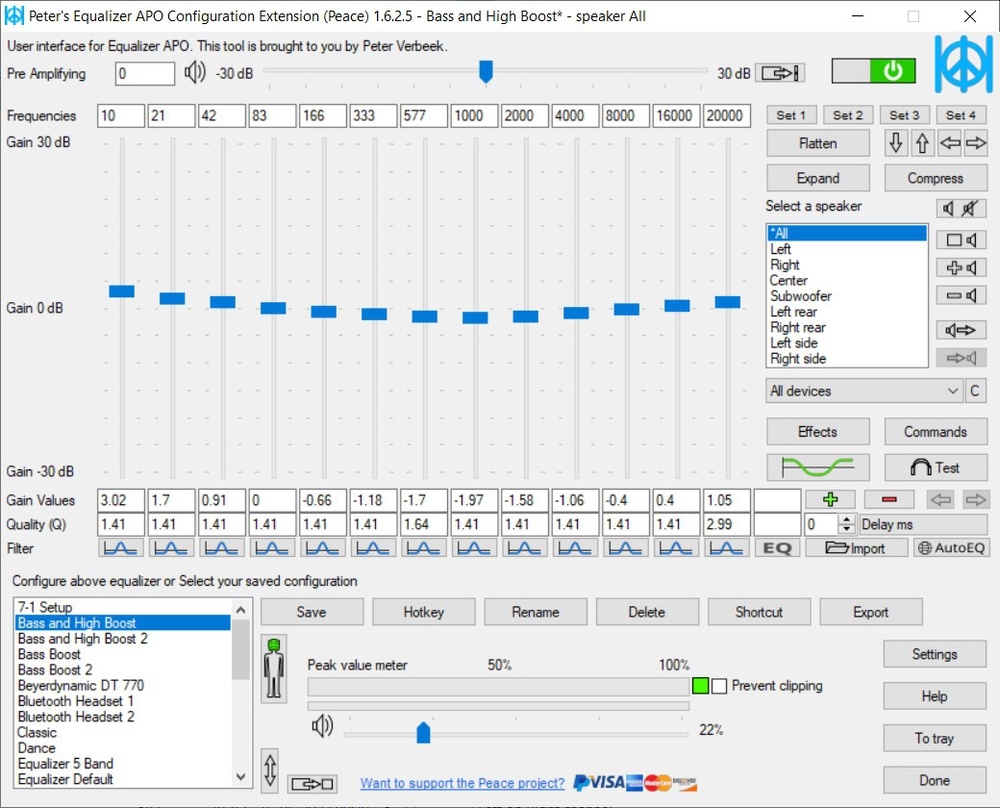
Equalizer APO operates at the OS audio driver level, applying virtually unlimited filters without added latency across music players, games, browsers, and other system audio. Configuration uses text files or a basic GUI. A front-end such as Peace GUI makes filter and slider adjustments more accessible.
macOS
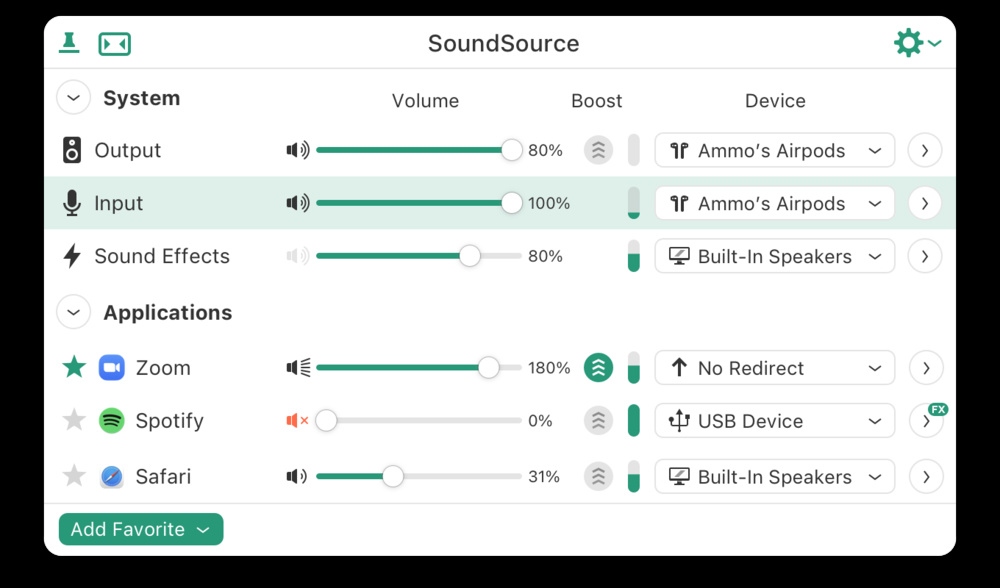
System-wide EQ on macOS is possible, though less straightforward than on Windows. eqMac supplies an audio driver with graphic EQ in its free version and parametric EQ in its paid version. Another popular paid choice, Rogue Amoeba's SoundSource, applies Audio Unit effects either to the system output or individual apps. These can include Apple's AUParametricEQ or third-party plugins.
Linux
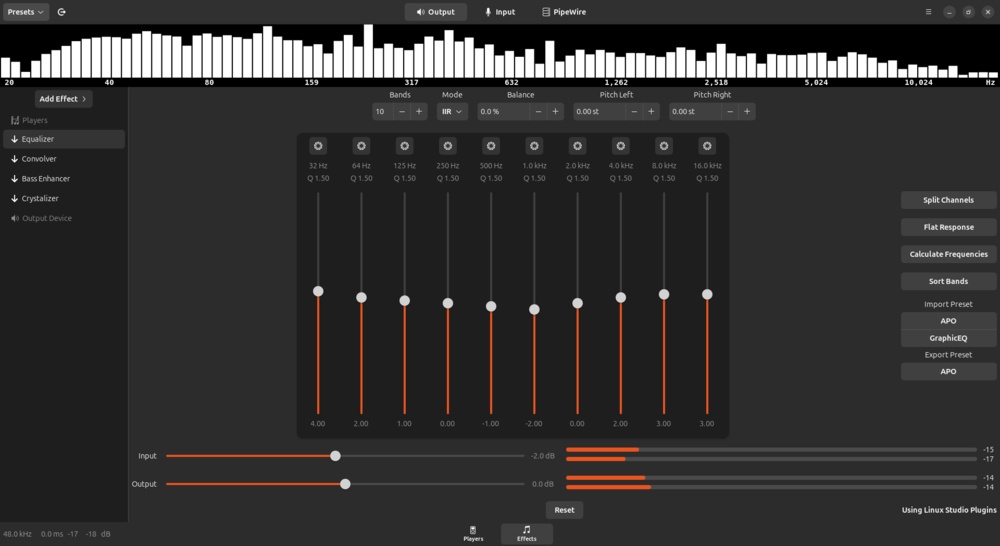
PulseEffects, now part of PipeWire and renamed EasyEffects, supports system-wide processing. It offers graphic and fully parametric EQ alongside compression, limiting, and other effects for detailed control across applications.
Community Presets and PEQ Settings
Shared presets remove much of the work of starting from scratch. Jaakko Pasanen's AutoEQ uses measurements from RTINGS, InnerFidelity, and other sources to generate corrections toward popular targets, including Harman. It supports parametric EQ, graphic EQ, and FIR filters for convolution.
The most common format, PEQ, specifies frequency, gain, and Q for each filter and works with software such as Equalizer APO and Wavelet. Oratory1990 also publishes PEQ settings based on personal measurements and tuning preferences, while communities such as Headphones.com share listener-created profiles.
These readable settings offer a quick, research-backed starting point, but they needn't be your final tuning.
EQ Datasheets from RTINGS
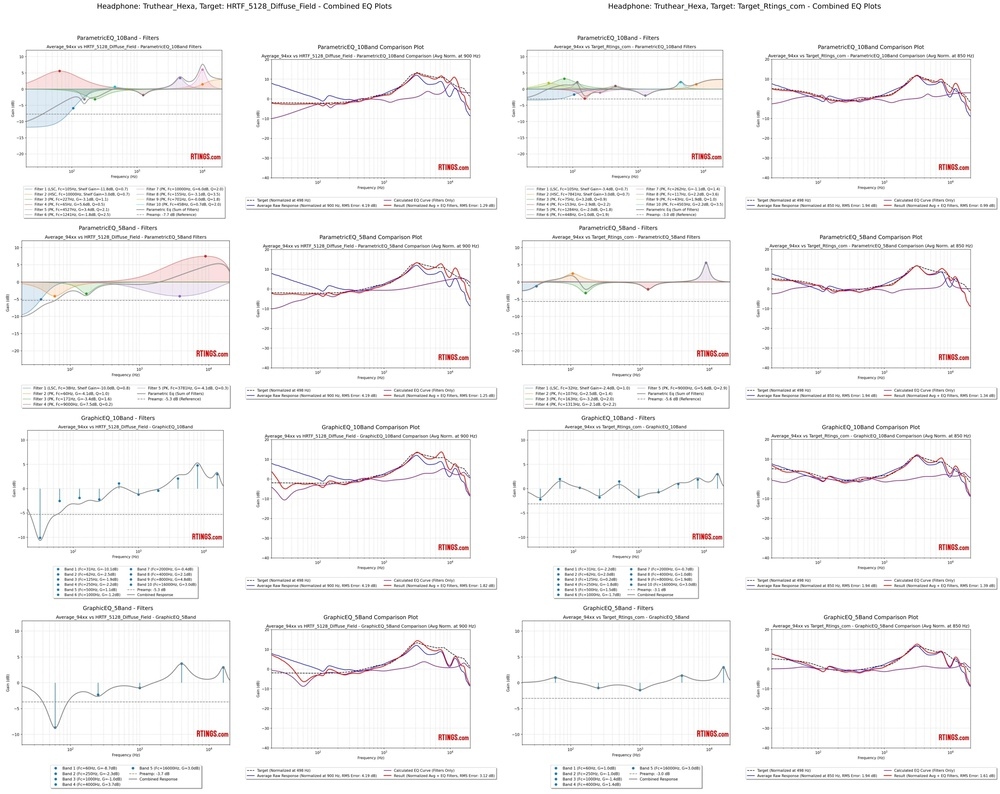
RTINGS.com has begun compiling EQ datasheets and currently provides them for all wired headphones and IEMs it has tested on Test Bench 1.8 or later. Each includes 5- and 10-band graphic and parametric settings for the targets introduced in the graph tool with Headphones Test Bench 2.0. Downloadable Equalizer APO text files are planned once the project is complete; for now, other apps and platforms will probably require manual entry.
The project currently focuses on wired models. Bluetooth headphones would need substantially more testing and infrastructure because of their built-in presets, app-specific tuning restrictions, and inconsistent DSP behavior. Future support hasn't been ruled out.
Precautions and Practical Tips
- Keep adjustments restrained. Large boosts can overload drivers or cause distortion, even if the audible threshold is higher than you expect. Major boosts or cuts may indicate deeper tuning problems. Too many narrow filters can also produce phase issues or audible artifacts. Use only the filters needed; a gentle, broad adjustment is often preferable to several sharp ones.
- Maintain headroom to prevent clipping. Cutting troublesome frequencies is generally cleaner and safer than boosting others. When boosting, lower the preamp by at least the amount of the largest boost to preserve headroom and prevent digital clipping. If you increase playback volume after cuts, do so gradually and listen for clipping.
- Respect driver limitations. EQ cannot create output the drivers cannot physically reproduce. Excessive sub-bass boosts may strain them or introduce distortion. Reduce the adjustments if distortion appears.
- Use your hearing as the final guide. Targets are references, not obligations. Reduce bass or treble if a target sounds excessive to you, and avoid dangerously loud listening while experimenting.
- Compare frequently. Switch EQ on and off, matching volume as closely as possible: louder playback often seems better even when it isn't. Test varied reference tracks, ideally across genres, rather than tailoring everything to one song.
- Keep useful presets. Save settings you like. Some apps support separate profiles for different uses and make switching easy.
- Prevent processing conflicts. Enhancements such as Dolby Atmos can stack or interfere with EQ. Disable other processing when using a dedicated app such as Poweramp Equalizer to avoid unpredictable results.
There is no universally perfect curve, and preferences can change. Treat targets and presets as guides, experiment within your headphones' limits, and aim for a balance you enjoy rather than a permanent, exact match.