If Bluetooth audio or wireless displays will not connect after installing Windows or an update, try the checks below. They apply to Miracast, Bluetooth audio, WiGig devices and PCs. Normally, selecting Connect in Action Center starts the connection process.
Check Miracast connections
- Restart the computer and every device involved.
- Verify that your device supports Miracast. Without that support, the Windows 10 feature cannot work. Consult the product manual or documentation, check the manufacturer’s website, or contact customer support.
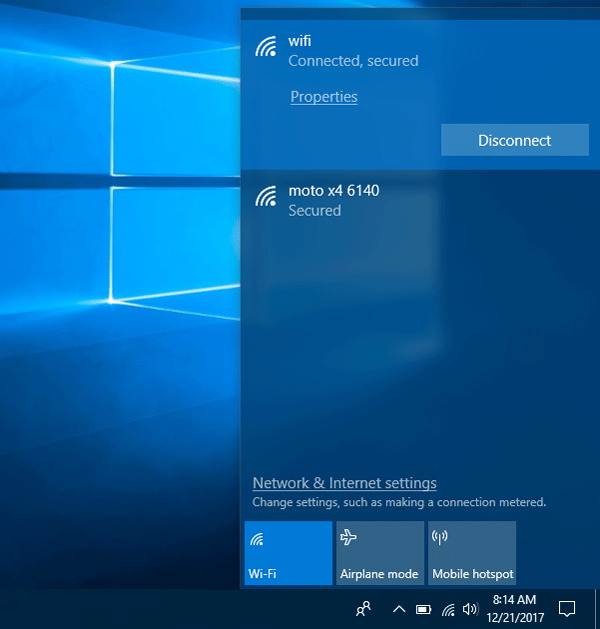
- Connect the source device to Wi-Fi, which Miracast requires.
- If the destination display lacks Miracast support, use a Miracast adapter. These adapters are available to purchase and include an HDMI port.
- Install or update the wireless display driver. Check for a firmware update for the Miracast adapter and install it if available.
- Remove the display or adapter and connect it again. Press Win + I, then open Devices > Bluetooth & other devices. Find the previously connected device under Projectors on the right, remove it, and retry the connection.
Troubleshoot Bluetooth audio
- Confirm that the source device supports Bluetooth.
- Make sure the devices are discoverable. How you enable this option varies by device.
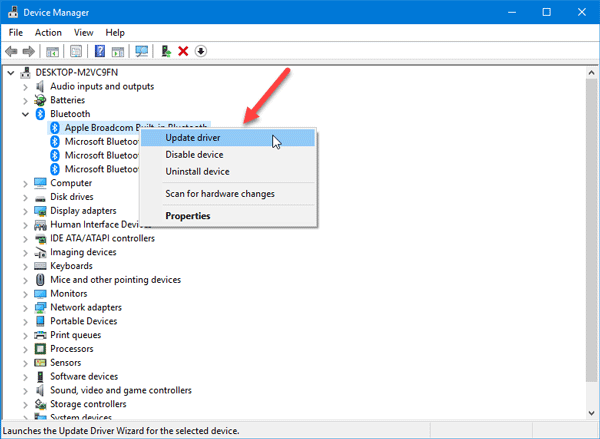
- Install or update the Bluetooth driver supplied for your adapter or built-in Bluetooth hardware. Press Win + X and select Device Manager. Right-click the relevant Bluetooth device, choose Update Driver, then select Search automatically for updated driver software. Follow the on-screen instructions.
- Pair the devices again. Bluetooth transfers require pairing, and system file changes or other problems can disrupt it. In Windows Settings, open Devices > Bluetooth & other devices, select the device and remove it. Reconnect it, then check whether it works.
Check WiGig support and settings
- Verify that the Windows device supports WiGig by checking the manufacturer’s website or contacting the manufacturer. Check the display’s support as well; if it does not support WiGig, use a WiGig dock.
- Turn on Airplane mode to locate the WiGig toggle. If WiGig is already enabled, disable it, then enable it again.
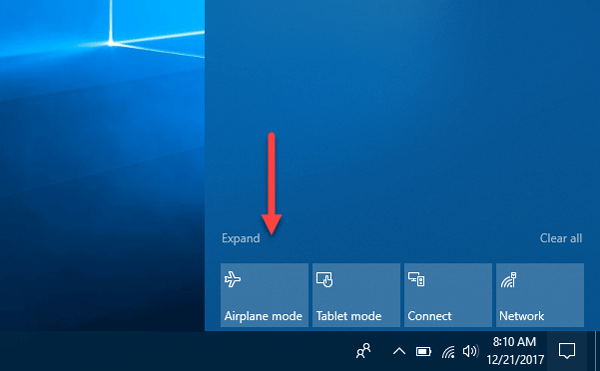
Troubleshoot projection between PCs
- Confirm that both devices support Miracast.
- Enable Wi-Fi if it is off.
- Restart the PC and Wi-Fi router.
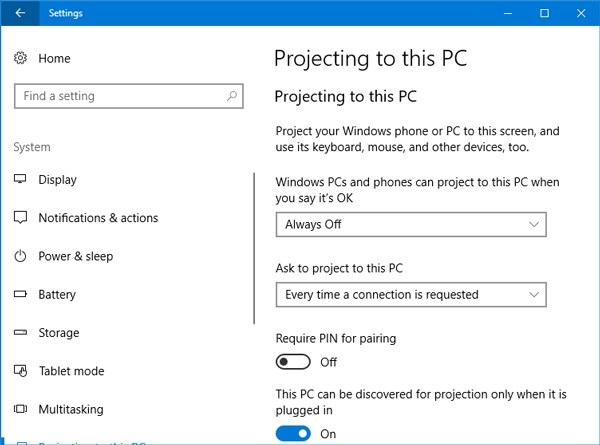
- Make the PC discoverable. Open Windows Settings and go to System > Projecting to this PC, then find the discoverability option on the right.
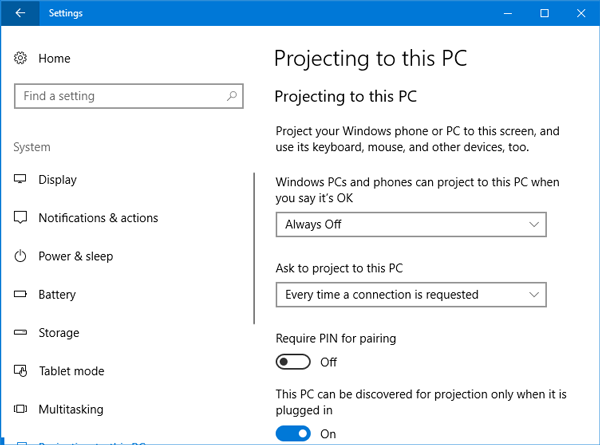
- Check that the destination display is switched on and supports Miracast. Press Win + S to open Cortana search, type Connect, and open the corresponding app. Select Connect in the results to check support.
Other possible causes
Wireless display connections can fail for several reasons, but Miracast support is essential: a PC without it cannot use Projecting to this PC. The same causes can apply on Windows 11 and Windows 10.
Bluetooth failures can also have different causes. For example, a malware or adware attack that stops the Bluetooth Support service can prevent Bluetooth from working. Bluetooth hardware problems on a computer or mobile device may also prevent file transfers.