Wireless headphones can work with Xbox Series X/S, but the consoles do not support Bluetooth accessory connections directly. You need a compatible USB dongle or a headset with Xbox Wireless built in.
Bluetooth is less suited to gaming because nearby devices and obstacles can cause interference. It is also more prone to delay than direct connections, with latency varying by headset. Many compatible wireless headsets therefore include an Xbox Wireless dongle for the console's USB port; others use the proprietary wireless connection directly.
Connect Through a USB Transmitter
- Connect the console to power and turn it on.
- Insert the compatible headset's supplied USB transmitter into the console.
- Wait a few seconds for automatic pairing.
- If pairing does not occur, press the console's sync button.
- Press and hold the headphones' power button until they connect to the console.
- Check that the headset has connected.
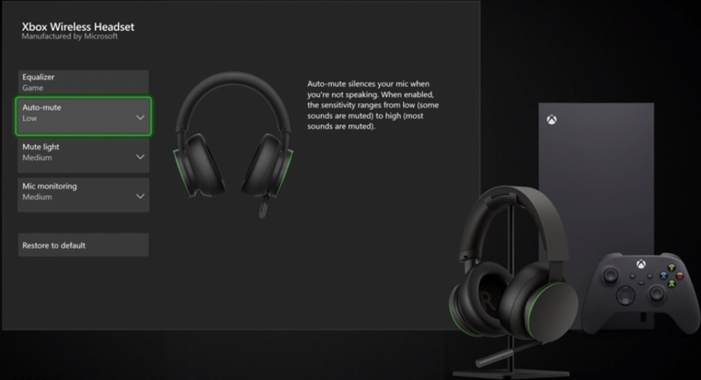
Connect Using Xbox Wireless
Xbox Series X/S uses a proprietary wireless protocol. Supported headsets can connect automatically when powered on. For the headset described here, the green power button sits on the back of the left earcup.
- Press and hold the headset's green power button.
- Listen for a repeating pairing tone and watch for the headset's power light to flash.
- Press the Pair button on the console.
- The console's power light will begin flashing.
- Once pairing finishes, both devices' power lights will stop flashing.
Audio should begin playing through the headset automatically. These headsets also support spatial sound technologies, including Windows Sonic and Dolby Atmos, for surrounding sound with greater realism and precision.
Charge the Xbox Wireless Headset
Use the supplied USB-C cable to connect the Xbox Wireless Headset to the console. Its charging port is on the lower rear of the right earcup.
With the headset unused during charging, 30 minutes can supply up to 4 hours of battery life. A full recharge takes 3 hours and provides up to 15 hours of use, depending on usage.
Note: You can use the headset while charging, but you will need to purchase a USB-C cable longer than the supplied one.
Adjust Headset Volume
Turn the dial on the outside of the right earcup clockwise to raise the volume. Rotate it backward, or anti-clockwise, to lower it.